Friday dispatch reconciliation
Jump to setup, results or troubleshooting
Use this workbook when customer service has one order list and the warehouse has a separate scan-event list. It shows which orders match their scanned quantities, which need investigation, and which scan events have no matching order. Download the filled example first, then use the blank workbook for your own batch.
Choose your file
- Blank Excel template: formulas and input areas, with no sample orders left inside.
- Filled Excel example: six fictional orders and eight scan events, with results you can compare.
- Complete template pack: both workbooks, original CSV inputs, expected outputs, instructions and dated test notes.
Free to use and adapt for your own work. No signup. The workbook contains no macros or external workbook connections. Your input data stays in your copy; the website has no upload form.
Is this the right template?
Use it for one batch of up to 50 orders and 150 scan events, with one quantity unit. Each order has a unique text ID and a positive whole-number quantity; each scan event has a unique text event ID. Multiple events can belong to the same order.
Do not use it for returns, cancellations, fractional weights, mixed units, multi-item orders sharing an order ID, or batches larger than the fixed input areas. It does not decide whether an order is paid, approved or safe to ship. A close candidate still needs your business review.
IDs retain leading zeros: 00127 and 0127 are different orders. Letter matching is case-insensitive: AB12 and ab12 refer to the same key. Spaces are not removed automatically. If your source system distinguishes letter case, this version is not suitable.
Check the example before using your data
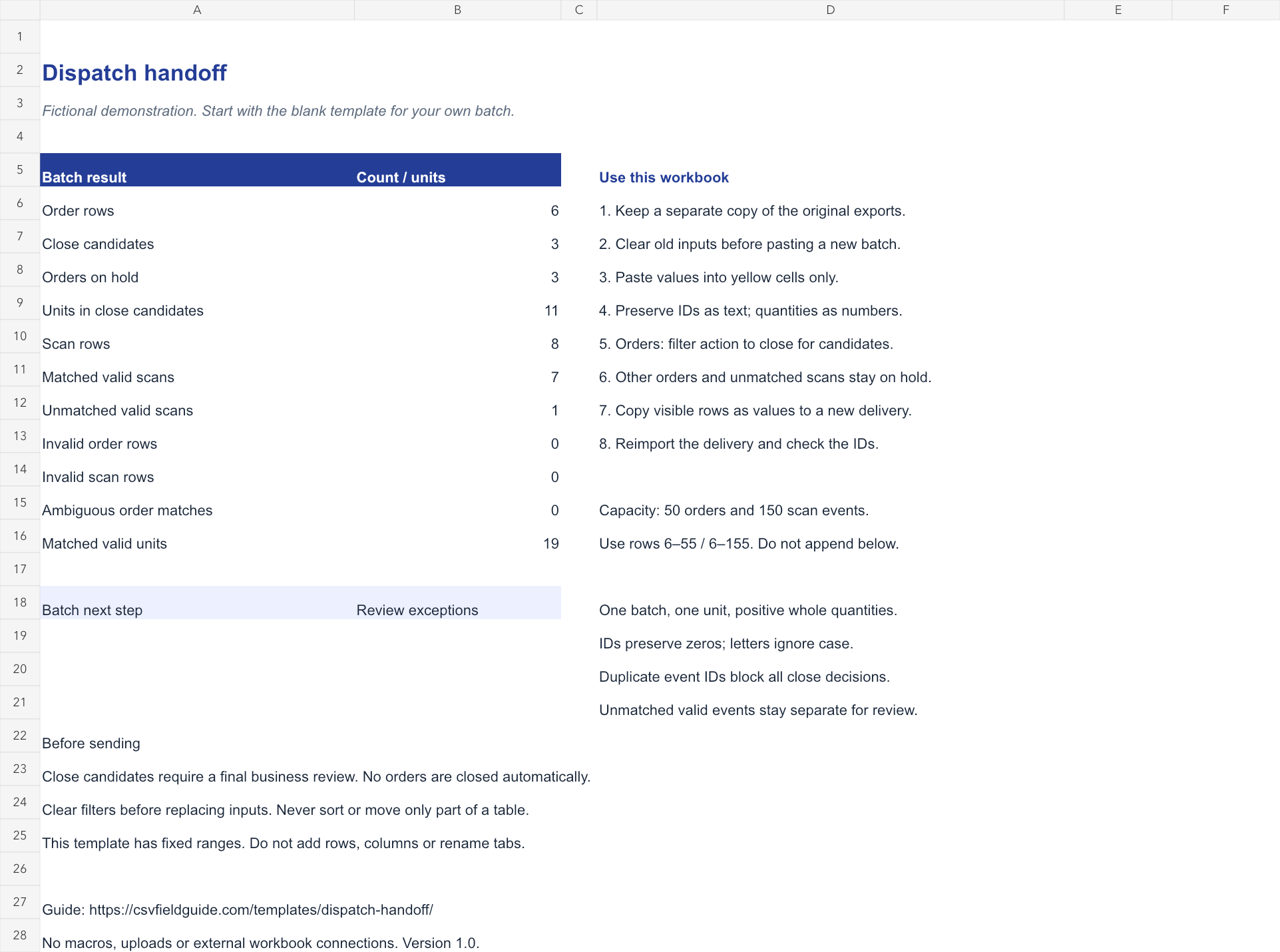
Open the filled example in desktop Excel. Allow normal workbook calculation; no macros are required. On Handoff, compare these controls before changing any inputs:
| Control | Expected |
|---|---|
| Order rows / scan events | 6 / 8 |
| Close candidates / units in those candidates | 3 / 11 |
| Orders on hold | 3 |
| Matched scans / matched units | 7 / 19 |
| Unmatched valid scans | 1 |
| Invalid order / scan rows | 0 / 0 |
Open Orders and compare every result:
| order_id | ordered_units | scanned_units | variance | action |
|---|---|---|---|---|
| 00127 | 5 | 5 | 0 | close |
| 0127 | 4 | 3 | -1 | short |
| 00008 | 3 | 5 | 2 | over |
| 00810 | 3 | 0 | -3 | no scan |
| 00042 | 4 | 4 | 0 | close |
| 00077 | 2 | 2 | 0 | close |
On Scans, event S08 belongs to 00990, which is absent from Orders. Its two units remain unmatched. This is why a grand total is insufficient: both source files total 21 units, but the order-level exceptions are real.
Replace the sample with a real batch
- Save the blank workbook under a new batch name. Retain the original source exports separately.
- Import source CSVs into a separate workbook first. Set ID columns to Text before loading them. Formatting an already-damaged number as Text cannot recover missing zeros or digits; use the safe ID import procedure.
- Confirm that order IDs are unique and that all quantity cells are positive whole numbers, not numeric-looking text. If IDs repeat because the source contains line items, stop: aggregate under an agreed business rule or use another workflow.
- In Orders, paste values only into
A6:B55: order_id, ordered_units. In Scans, paste values only intoA6:C155: scan_id, order_id, scanned_units. Do not paste headers or overwrite formula columns. - Check Handoff against your source row counts. Clear all filters before replacing a previous batch, and clear all old input cells first. Never just paste a shorter batch over an older, longer one.
- Resolve invalid rows and ambiguous order matches. Review unmatched scans separately. Recalculate in Excel if results have not refreshed.
The ranges are fixed. Do not add rows beyond row 55 in Orders or row 155 in Scans, insert columns, rename sheets, or sort only some columns. For a larger batch, do not silently truncate the input.
Produce the close list and exception list
In Orders, use the table filter on action and select close. Copy only the visible data rows into a new delivery workbook using Paste Values. For the example, the close IDs are 00127, 00042 and 00077, totaling 11 units. Check all three IDs after copying; do not copy formulas that refer back to the template.
Then filter for the remaining nonblank actions to create the order exception list. Add the unmatched or invalid events from Scans as a separate section or file. Do not force a scan without an order into an invented order record. Keep the event ID, order ID and quantity so the warehouse can trace it.
This template supplies filters and decisions; it does not automatically create delivery files or close orders in another system. For a CSV handoff, follow the export and reimport check. Compare the row count, IDs and quantity total in the receiving file, not just the Excel display.
When a result looks wrong
| What you see | What it means | What to do |
|---|---|---|
| invalid: ID not text | An identifier is stored as a number | Return to the intact export and import as text; do not guess zeros |
| invalid: duplicate ID | Two order rows use the same key | Resolve the source conflict before reconciling |
| invalid: duplicate event | A scan event ID appears twice | Establish whether the source was duplicated; do not delete legitimate events by quantity alone |
| review scans on every order | At least one scan row has invalid input | Fix scan inputs first; all close decisions are deliberately blocked |
| invalid: quantity | Missing, text, zero, negative or fractional units | Correct from the source; this template accepts positive whole units only |
| unmatched | A valid scan has no order in this batch | Check the batch and ID; keep it in the exception delivery |
| ambiguous order | A scan matches more than one order row | Resolve the duplicate order keys |
| no scan | No valid matching event was found | Check the scan export and identifiers; zero is not proof of no shipment |
| short or over | Matched units differ from ordered units | Investigate partial scans, duplicates and the agreed unit |
If cells show formula errors, or the example controls differ, stop using the close list. Keep the unmodified file and report the workbook version, Excel version and affected cell through Contact. Do not send customer data.
What was tested
Version 1.0 · November 25, 2026. The downloadable files were calculated with Artifact Tool, checked against all six expected order outcomes, and tested with changed quantities, duplicate keys, missing and invalid quantities, numeric IDs, unmatched IDs, letter case and the last supported input rows. Temporary test changes were restored before export. The blank workbook was checked for stale input rows and decisions. See the dated test record.
The earlier manual dispatch case has its own native Excel evidence dated November 12. That evidence covers the manual case, not this new workbook version. Native desktop Excel validation of this new template is still pending. Start with the filled example and verify the controls in your own Excel before using real operational data.
Learn the underlying checks
Use the manual case to build the reconciliation yourself. For specific problems, read compare two lists, review duplicates and reconcile grouped totals. Each solves a different part of the handoff rather than replacing the batch-level review.